Scaleway acquires Qarnot to strengthen its European Cloud & AI platform
Read more
.svg)

Lorem ipsum dolor sit amet, consectetur adipiscing elit, sed do eiusmod tempor incididunt ut labore et dolore magna aliqua. Ut enim ad minim veniam, quis nostrud exercitation ullamco laboris nisi ut aliquip ex ea commodo consequat. Duis aute irure dolor in reprehenderit in voluptate velit esse cillum dolore eu fugiat nulla pariatur.
Block quote
Ordered list
Unordered list
Bold text
Emphasis
Superscript
Subscript
Code_Aster is a free and open-source numerical simulation software, originally developed by EDF, specializing in the mechanical, thermo-mechanical, and multi-physical behavior analysis of structures and materials. It is widely recognized for its reliability and expertise in the fields of energy, civil engineering, fracture mechanics, and complex non-linear analyses (including fatigue, creep, and large deformations). Engineers and researchers rely on Code_Aster to accurately model the durability and integrity of structures under extreme conditions, such as seismic events or intense thermal stress.
The Code_Aster versions available on Qarnot are available via the catalog.
If you are interested in another version, please send us an email at support-compute@qarnot-computing.com.
To launch a task with a button click from our web interface, you can use this step-by-step tutorial.
If needed, here is a test case etudepoutre2D.
To do this, the prerequisites are:
The following examples will show you in detail how to launch a task using a Python script.
If needed, here is a test case: etudepoutre2D. Once the file is downloaded, place it in a directory named “etudepoutre2D”.
Once everything is configured, use the script run_code_aster.py below to launch a minimalist computation on Qarnot. If you want to explore more advanced options, the next scripts ("Batch Launch" and "SSH Launch") will surely interest you more.
To launch these scripts, simply copy the preceding code into a Python script, place it at the same level as the “etudepoutre2D” folder, and then execute, in your terminal:
python3 run_code_aster.py
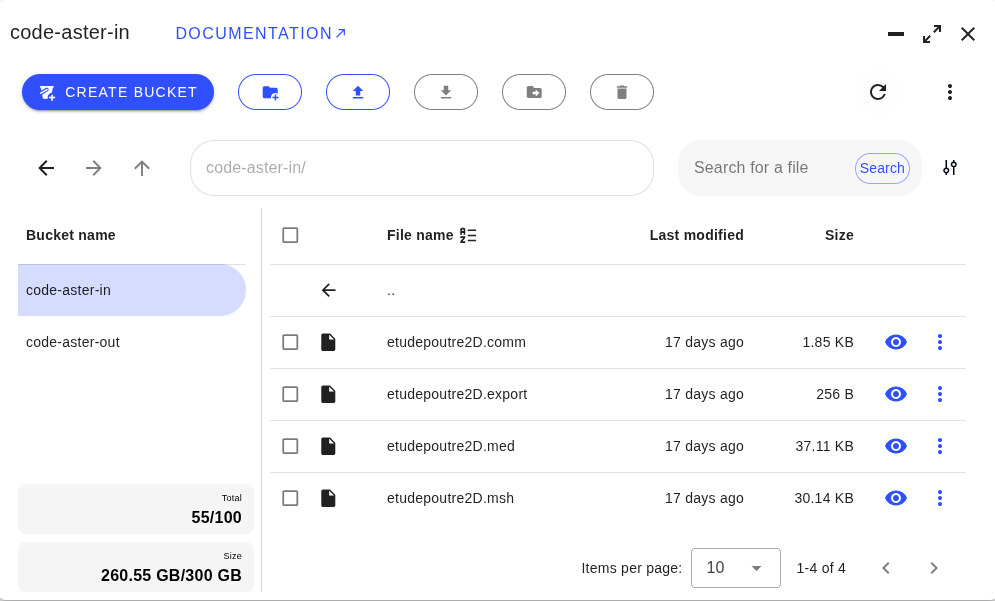
The structure of your files should look like this:
├─ etudepoutre2D/
│ ├─ etudepoutre2D.comm
│ ├─ etudepoutre2D.export
│ ├─ etudepoutre2D.med
│ ├─ etudepoutre2D.msh
├─ run_code_aster.py
Make sure you have copied your authentication token into the script (in place of <QARNOT_TOKEN>) so you can launch the task on Qarnot. Retrieve it here.
For example, your input data will appear in the web interface as:
The script presented below allows you to explore the more advanced features of the platform for a batch launch.
The script presented below allows you to connect to your container using the SSH protocol.
To launch it, simply copy the preceding code into a Python script, place it at the same level as the input folder, and define your SSH key in the DOCKER_SSH parameters.
Also make sure you have copied your authentication token into the script (in place of "QARNOT_TOKEN") so you can launch the task on Qarnot.
Then execute the following command in your terminal:
python3 run_code_aster_ssh.py
You should now be able to connect to the host by following the information displayed in your console. Your test case is available in /share. Go to the /share directory (by doing cd ../share) and you can execute your test case.
You should now have an etudepoutre2D-out folder in your working directory on your computer, as well as an etudepoutre2D-out bucket on the HPC Platform containing all the output files.
You can visualize certain images and log files generated by the simulation directly on the HPC platform, which are located in your output bucket. Your results will be stored in the etudepoutre2D-out bucket and can be retrieved in three ways:
For a large quantity of files or more than 5GB of data, it is advisable to use rclone (linux) or cyberduck (windows). These are two opensource S3 bucket management applications.
For more information on Code_Aster, you can consult the official documentation or browse the Code_Aster community forum where users share their expertise. Additionally, feel free to contact us for onboarding and a more personalized presentation of our services via: support-compute@qarnot-computing.com.